
Use the calendar
The calendar shows your bookings in one place, coloured by service. Use it to see who is busy, open a booking or add one made by phone.
Choose a view and a date
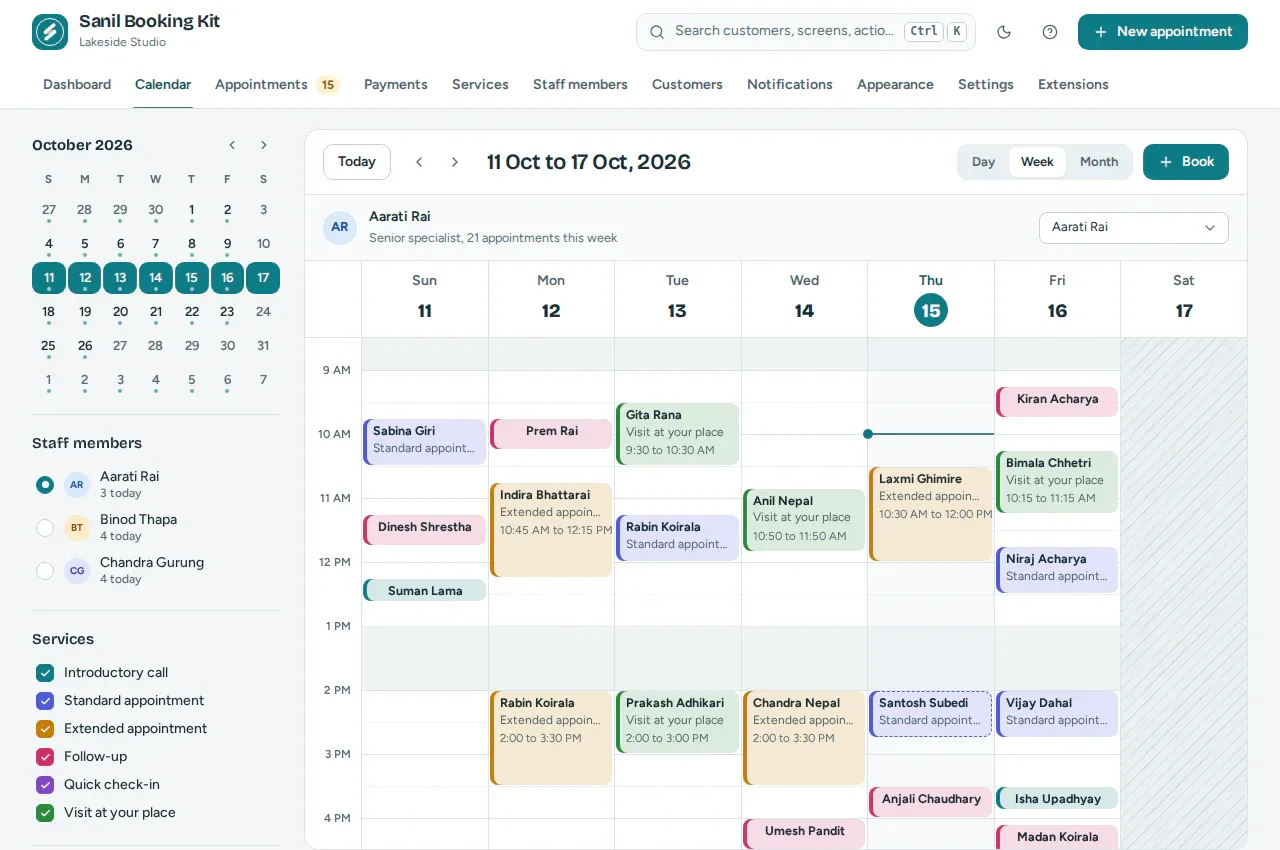
Use Day, Week and Month at the top to change the view. Today jumps back to the current date, and the arrows move forward or back by one day, week or month. The small month on the left jumps to any date and marks the days that have bookings.
- Day shows one column for each person you have ticked, side by side.
- Week shows seven days for one person. Use the drop-down beside their name to switch to someone else.
- Month shows the bookings of everyone you have ticked. Click a day to open it in the Day view.
Show only what you need
The panel on the left filters the calendar:
- Tick the people to show. In the Week view you pick one person instead. In the other views, the Select all or Clear link above the list ticks or clears everyone. If nobody is ticked, the calendar asks you to pick at least one person.
- Tick the services to show. Each service uses the Calendar colour you chose when you edited it.
- Turn on Show cancelled to see cancelled bookings as well. They are hidden by default.
The key below the filters shows how Confirmed, Waiting for approval and Completed bookings look.
Open or add a booking
Click a booking to open it. You can confirm it, reschedule it, record a payment and more. See Manage appointments.
To add a booking, click an empty time in the Day or Week view. The new booking starts at that time, rounded to 15 minutes. You can also click Book at the top. Days when you are closed cannot be clicked, because no one can book them.
People only see what their role allows. A staff member sees their own appointments, and a receptionist sees everyone’s. See Give your team access.
If the calendar looks empty
Check the date, the people and services ticked in the filter panel, and Show cancelled. If a teammate sees an empty calendar, see Team member cannot see bookings.