
Manage customers
Booking Kit saves a customer record the first time someone books. Use it to see their history, add a private note or book them in again. The screen is named after your business type, so it may read Patients or Clients.
Find or add a customer
Open the customers screen and type a name, phone number or email address into the search box. The list shows each customer’s phone, last visit, next appointment, number of visits and flags. If you have used flags, buttons above the list filter by flag, and Everyone clears the filter.
To add someone yourself, click the add button at the top and enter their first name, last name, phone and email. Add Flags such as VIP, Prefers calls, separated by commas. Customers who book online are added automatically, so you rarely need this.
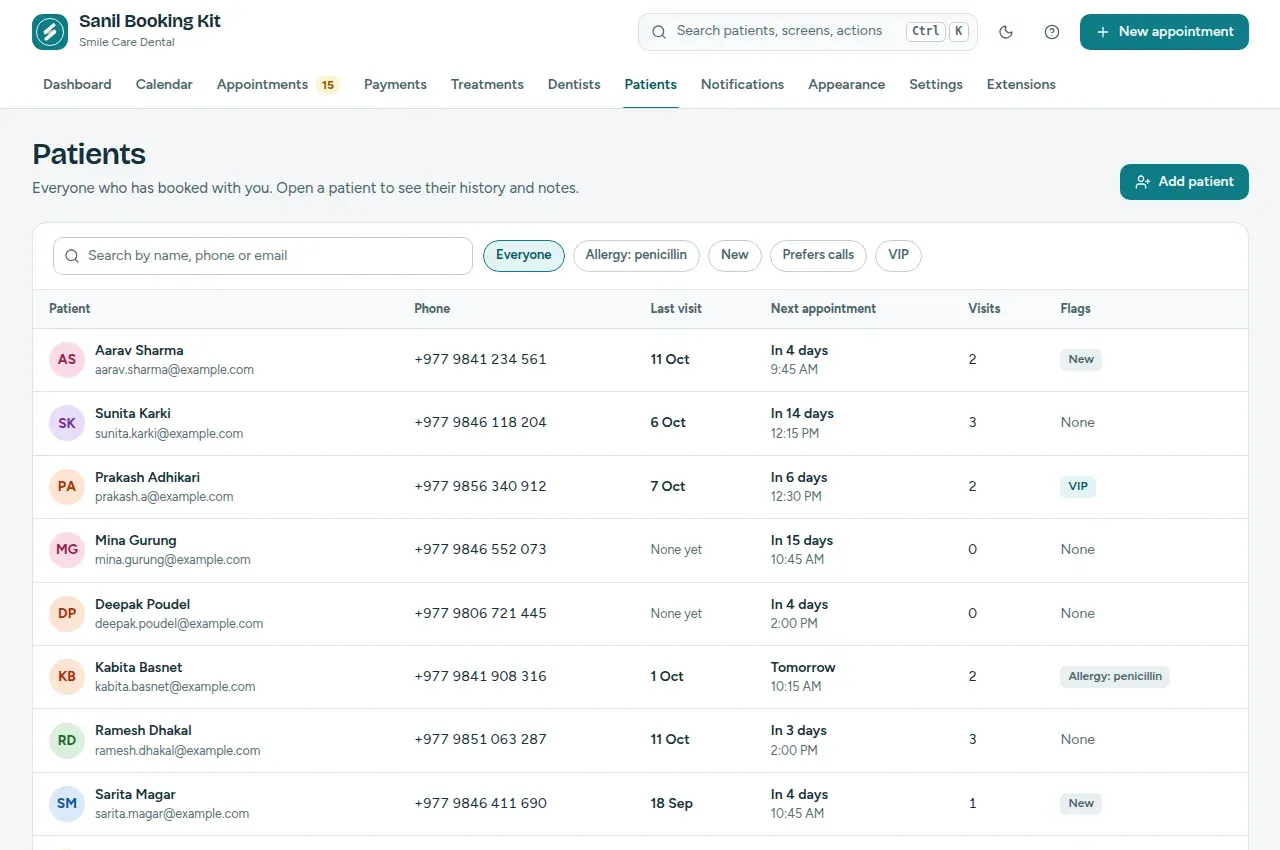
Open a customer’s record
Click a customer to open their record. It shows how many bookings were completed, how much they have paid and how many times they did not turn up. Below that you can:
- Click Edit to change contact details and flags, then Save details.
- Write in Private notes. Only your team sees them, and they save when you click away from the box.
- Read their booking History.
- Click Email to write to them, or the new appointment button to book them in.
Remove a customer’s data
The Erase button deletes a customer and their bookings for good. It is only shown to people who may export data, and it does not work if any booking has a payment recorded. See Customer data and privacy before using it.
Who sees customers depends on the role. Receptionists and staff members can see customer details by default, and an administrator can turn this off in Settings → Team and access. A staff member only reaches customers through their own bookings. See Give your team access.