
Buy and install an extension
Extensions add features that are not part of the free plugin, such as taking a PayPal deposit when customers book. Each extension is a separate WordPress plugin that works with Sanil Booking Kit. Only administrators can open the Extensions screen.
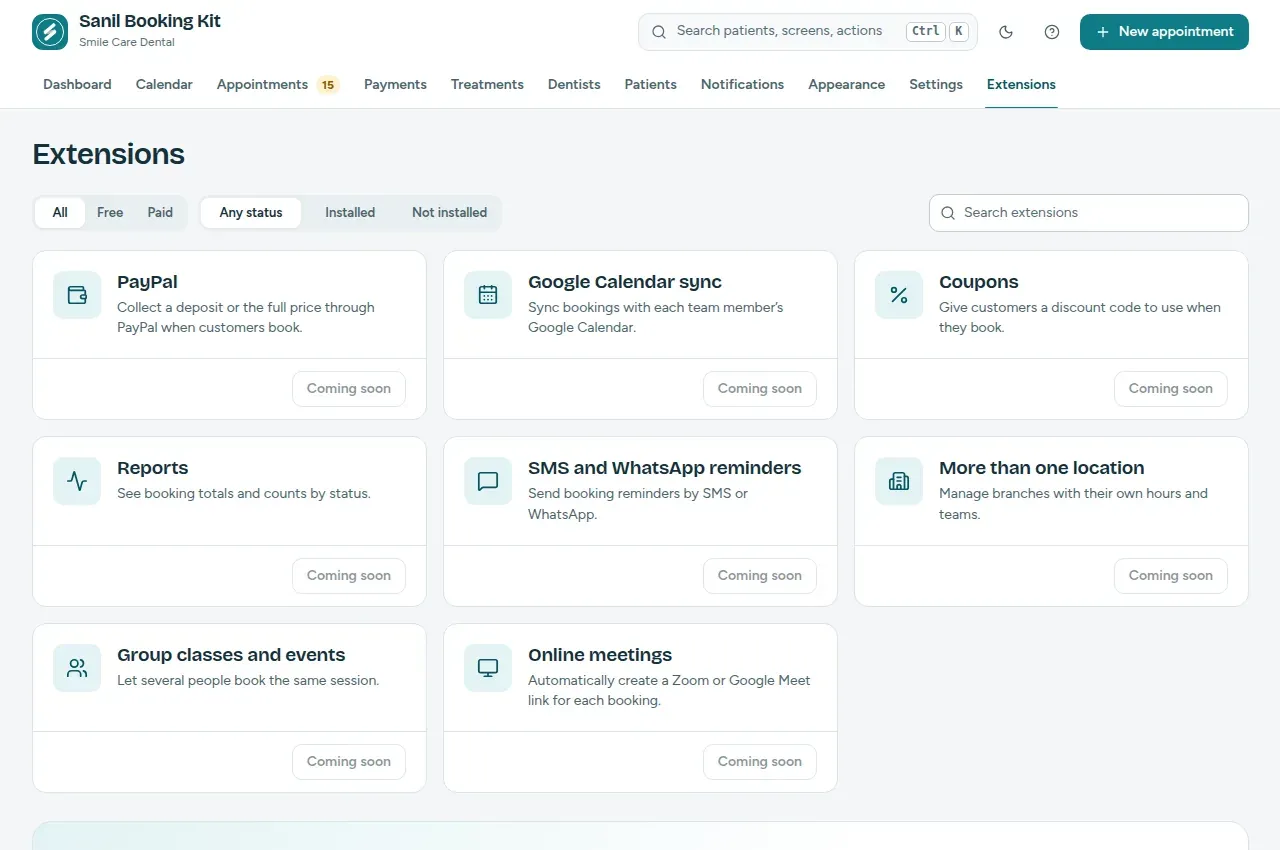
No paid extension is on sale yet. Every extension that is not released shows Coming soon and cannot be bought. The steps below describe how buying and installing will work once one is released.
Browse the extensions
Open Sanil Booking Kit → Extensions. Each card names an extension and says what it does. Use the buttons at the top to show All, Free or Paid extensions, show only the ones Installed or Not installed, or search by name.
A card shows Free or its price until the extension is installed. Extensions that are not released yet show Coming soon and cannot be bought. A listing on this screen does not change your site until you install the extension.
Buy and install a paid extension
- Choose Purchase. Click Purchase on the card. A window shows what the extension does and its price. Payment is handled by Freemius.
- Pay at checkout. Click Purchase in the window. Checkout opens in a new tab. When you finish, Freemius emails your purchase confirmation, with the download and licence details, to the email address you entered at checkout.
- Download the extension. Use the link in the email, or open your account to download your extensions, manage licences and view invoices.
- Install it. In WordPress, open Plugins → Add New → Upload Plugin, choose the extension’s zip file and click Install Now. Sanil Booking Kit must stay installed and active.
- Activate the plugin and its licence. Click Activate Plugin. A licence screen asks for the licence key from your purchase email. Until a valid licence is active, the extension stays switched off.
- Open its settings. Go back to Sanil Booking Kit → Extensions. The card now shows Installed and a Settings button.
Paying does not install or activate anything by itself. You need to complete the install and licence steps above.
Find your account later
Once a paid extension is installed, a My Account link appears in the Booking Kit menu. It opens your account in a new tab, where you can download extensions again, see licences and view invoices. You can also go straight to your account page.
Payments for extensions are handled by Freemius. Purchase confirmations, invoices and subscription-related emails are sent through Freemius to your purchase email address. This is separate from the payments your own customers make to you.
If something goes wrong
- The card shows Manage plugins instead of Settings: the extension may not be activated, or its licence is missing. Open Plugins in WordPress, activate it and enter the licence key.
- You cannot find the confirmation email: check your spam folder, then open your account.
- For anything else, contact support with the extension name and your purchase email address. Do not send licence keys or passwords in a message.
When PayPal is installed, continue with Set up online payments.