
Track payments and refunds
Booking Kit keeps a record of what each customer has paid. It does not move money itself. You take payment on arrival or through a gateway, and Booking Kit records it. Refunds work the same way: you give the money back, then record it.
Record a payment on arrival
Open an appointment and look at the Payment section. It shows the price, or Free, and what has been paid.
- Turn on the Paid switch when the customer pays. Turn it off if you marked it by mistake. The appointment’s history records who changed it.
- If a customer pays part of the price, use Record balance paid when they pay the rest.
- If an online deposit was taken, the section shows what was paid online and what is due on arrival. Use Record balance paid once you collect the rest. Undo … balance payment removes a balance you recorded by mistake.
- A cancelled or declined booking has no switch. Click Record payment if you charged a cancellation fee.
To change what a booking costs, click Change price and enter a reason. If the new price is lower than what was paid, the section shows Overpaid by and a Record refund button.
Money held on a cancelled booking
When a booking is cancelled or declined but still has a payment recorded, the appointment shows Payment held. The list also has a Payment held filter, and the cancel box tells you how much is recorded.
Administrators then choose one of two actions:
- Record refund if you gave the money back. This opens Payments, already searching for this booking, where you record the refund as described below.
- Keep payment if you are keeping it, for example as a fee. You can give a reason. The appointment then shows when the payment was kept.
Review payments
Administrators can open Payments to see every payment, both online and pay on arrival. Each row shows the amount, status, method, reference and date received. Search by name, reference or booking number, then click a payment for its details, refund history and gateway information such as the transaction ID.
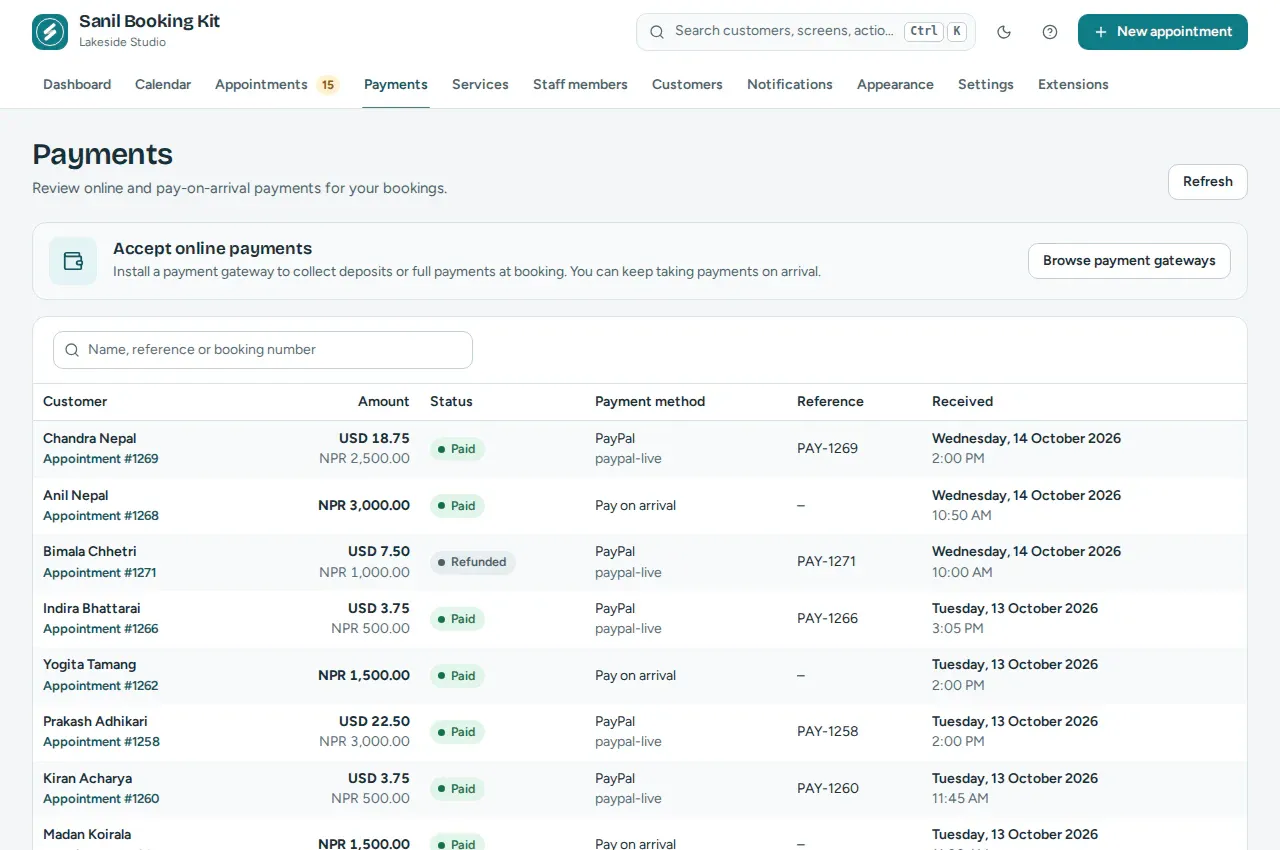
The statuses mean:
- Paid – the payment was received.
- Partially refunded and Refunded – some or all of it was given back.
- Refund required – an online payment arrived after the time was taken, so it needs refunding. Refund it in your gateway, then record it.
- Refund pending or Refund failed – the gateway reported that the refund is not finished, or that it did not go through. Check the transaction in the gateway’s dashboard.
- Refund needs review – a refund reported by the gateway could not be matched with what Booking Kit has recorded. Check both in the gateway’s dashboard, then record the missing refund with the gateway’s reference.
- Voided – the entry was undone and no longer counts in your totals.
Record a refund
- Give the money back. For an online payment, refund it in the gateway’s own dashboard. For cash or a card machine, refund the customer as you normally would. Booking Kit never sends a refund to a gateway.
- Open the payment. In Payments, click the payment. Check Remaining refundable.
- Click Manual refund. Enter the amount you returned. Partial refunds are fine, up to the remaining amount.
- Add a note. For online payments that already have a refund recorded, Notes is required, so enter the gateway’s refund reference. Otherwise a note is optional. Click Save.
If you record a refund by mistake, click Undo entry on it and give a reason. The entry stays visible in the history, marked as undone. A voided payment cannot be refunded, and a payment that has a refund cannot be voided until you undo the refund.
For refunds on a gateway and webhook setup, see Set up online payments. If payments are not arriving, see Online payments are not working.