
Find bookings and export a CSV
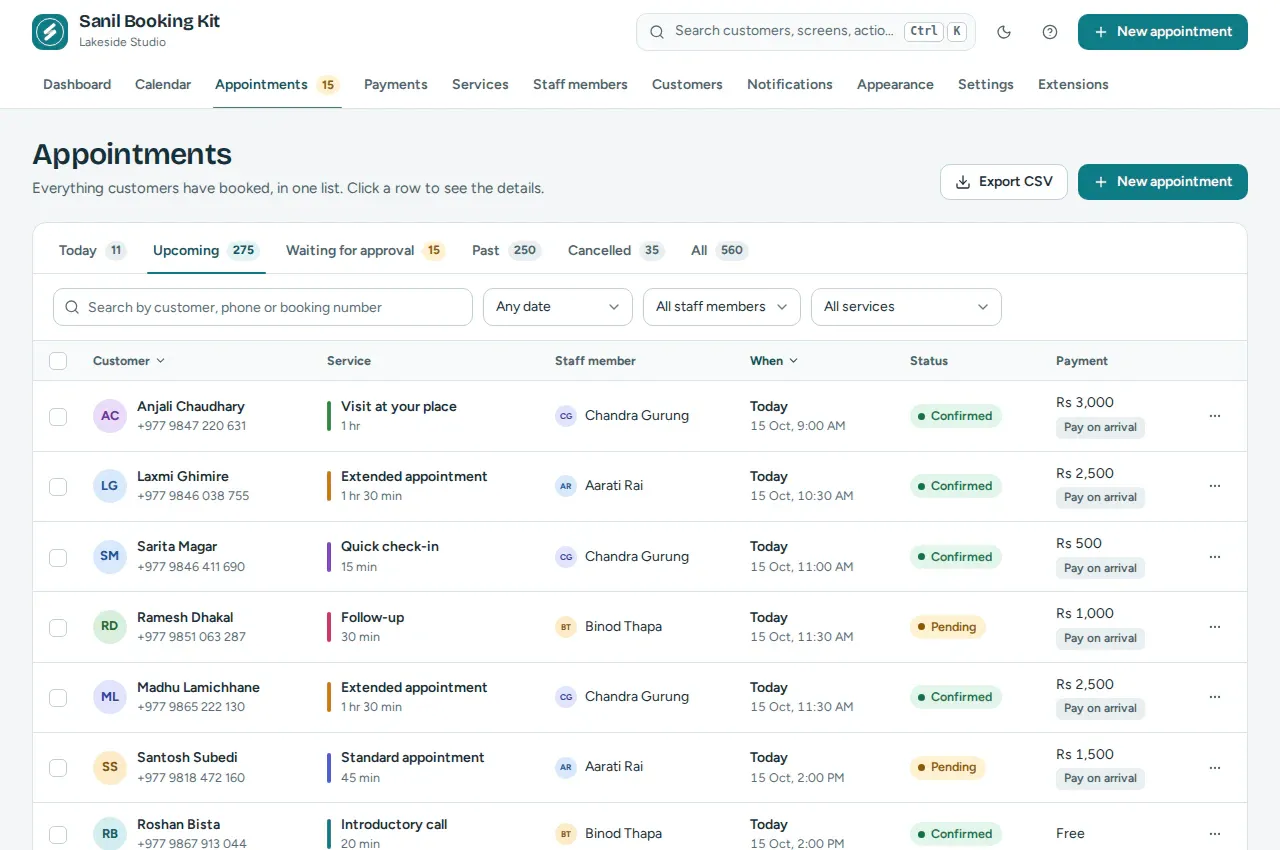
The appointments list shows every booking in one table. Use it to find a booking quickly, confirm or cancel several at once, or download your bookings for a spreadsheet.
Find a booking
- Pick a tab. The tabs are Today, Upcoming, Waiting for approval, Past, Cancelled and All. Waiting for approval lists new bookings that need a yes.
- Search. Type a customer name, phone number or booking number into the search box.
- Narrow it down. Use the filters for the date range, person, service and payment. The date range includes Today, Next 7 days, Next 30 days, Last 7 days and Last 30 days. The payment filter includes Payment held, Balance due and Completed, not paid.
- Open the booking. Click a row to see its details, or use the More actions menu on the row. Click Clear filters to start again.
Act on several bookings at once
Tick the box beside each booking, or tick Select all on this page. A bar appears with Confirm, Completed and Cancel for the selected bookings, and Clear selection to untick them.
Cancelling asks you to confirm first. It frees the times for other customers, and customers get the cancellation email if that email is switched on. Bookings that are already in the chosen state are left alone.
Export a CSV
Click Export CSV at the top of the list. Your browser downloads a file named bookings- followed by today’s date.
- The file follows your current tab, search, date range, person and service, so set those first. It ignores the payment filter, so filter by Payment in your spreadsheet instead.
- Each row is one booking. The columns are Booking, Date, Time, Minutes, Service, Staff, Customer, Email, Phone, Status, Price, Currency, Payment, Source, Message and Booked at.
- The file opens correctly in Excel, Google Sheets and LibreOffice, including names with accents.
The button only appears for people who are allowed to export. An administrator turns this on in Settings → Team and access. A staff member’s export only contains their own bookings. See Give your team access.
The file contains customer details, so store it carefully and delete it when you no longer need it. See Customer data and privacy.