
Add a popup or skip ad
This tutorial adds a popup, such as a newsletter offer, to your site. A skip ad works the same way and is covered at the end.
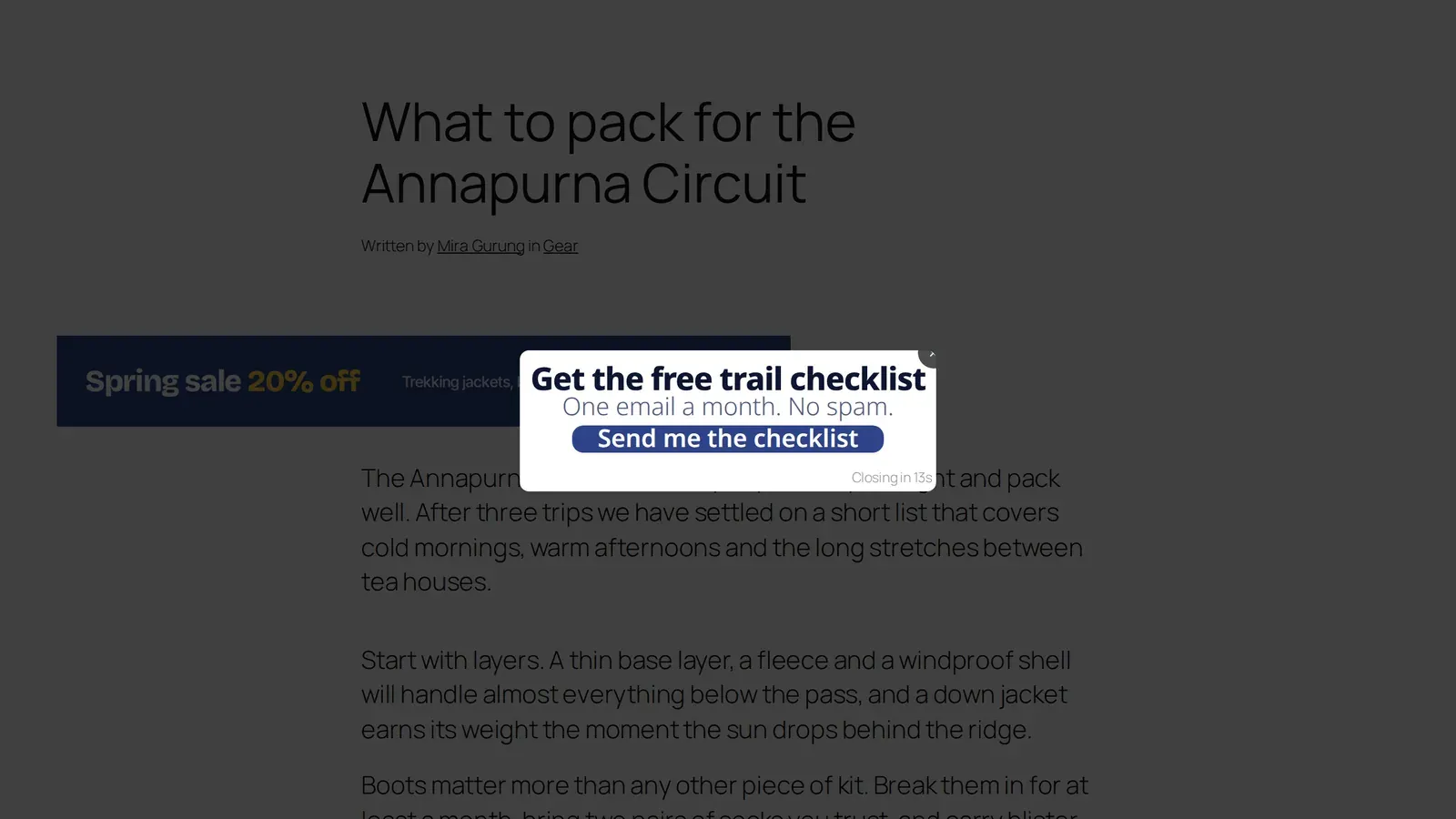
Set up the popup
- Create the ad. Make an image or HTML ad as described in Create your first ad. A popup works best with an image of roughly the size you want shown.
- Add a placement. Go to Sanil Ads Kit → Placements and add a new placement. Give it a Display Name, then under Placement Type choose Popup (in the Overlay group).
- Assign the ad. Under Assign, pick Single Ad or Ad Group. For a popup, a group with Visible Ads set to 1 works best.
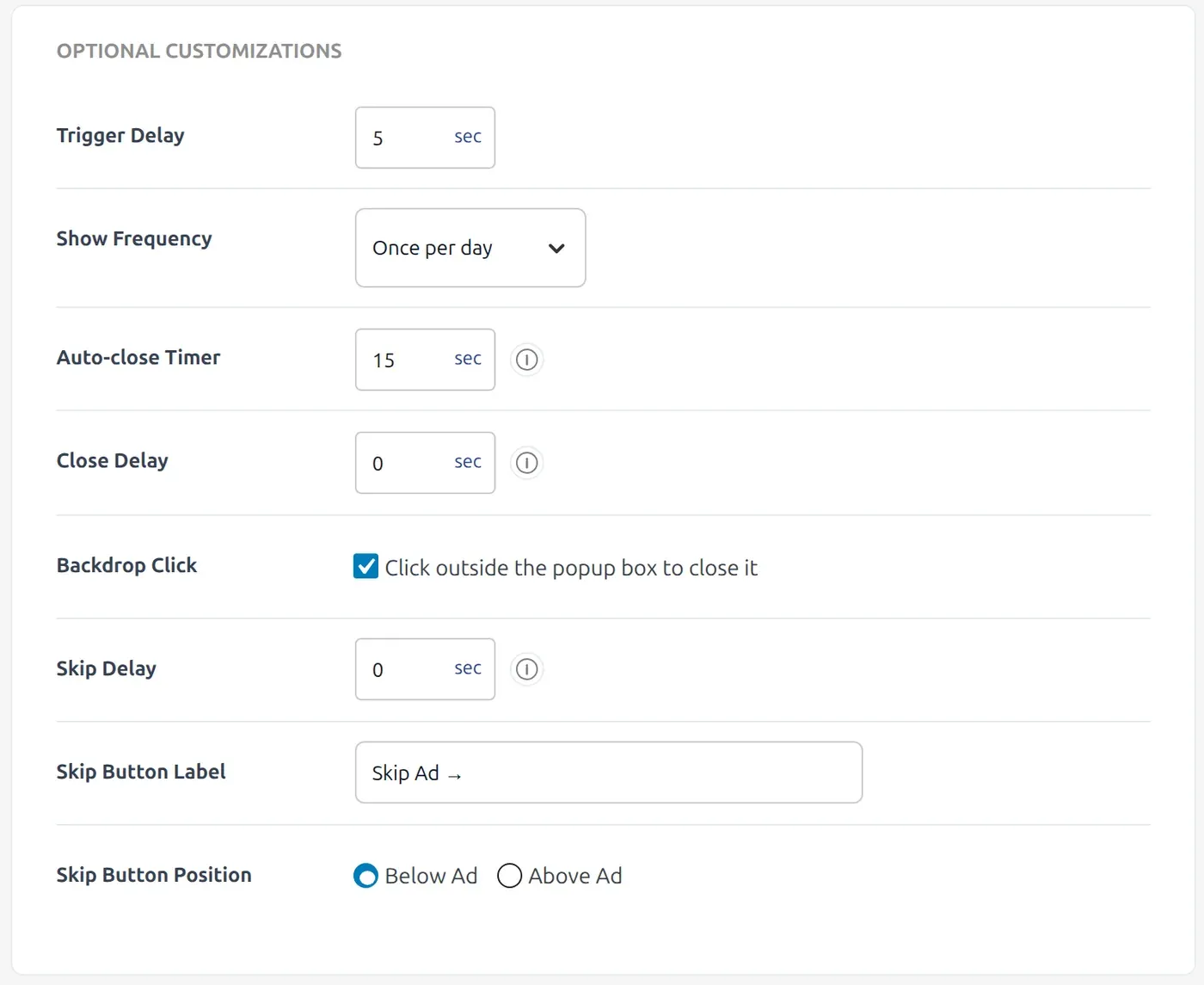
- Choose when it appears. Under Optional Customizations, set the Trigger Delay, the number of seconds after the page opens.
- Choose how often. Set Show Frequency to Always, Once per session, Once per day or Once every N days.
- Choose how it closes. Set an Auto-close Timer to close it after a number of seconds (0 turns it off). Set a Close Delay to keep the close button inactive for a few seconds (0 means it can be closed at once). Tick Backdrop Click to let a click outside the popup close it.
- Save and test. Click Save, then open your site in a private window. A popup limited to once per session or day will not repeat in your normal browser.
Skip ads
Choose Skip Ad under Placement Type instead to show the ad over the whole page first, like an interstitial. You set:
- Skip Delay: the seconds before the skip button becomes active (0 means it can be used at once).
- Skip Button Label: the button text. The default is “Skip Ad →”.
- Skip Button Position: Below Ad or Above Ad.
Note
The popup and skip-ad files only load on pages where one of these placements exists, so the rest of your site stays light.
If the popup does not appear, see My ad is not showing.