
Sign in and set up your business
Sign in
- Open Sanil CRM. Go to sanilcrm.sanil.app.
- Click Sign up with Google. If you have been here before, click Continue with Google. There is no separate password. The first sign-in creates your account.
- Choose your Google account.
Set up your business
If someone has already invited you to their business, you first see the invitation. See Invite your team and set roles. Otherwise Sanil CRM walks you through two short screens:
- Let’s set up your business. Add your Business name, an optional Business logo (PNG, up to 512KB), your Default currency and your Timezone. This appears on every invoice and quote.
- Where can clients reach you? Add your Email, Phone and Address.
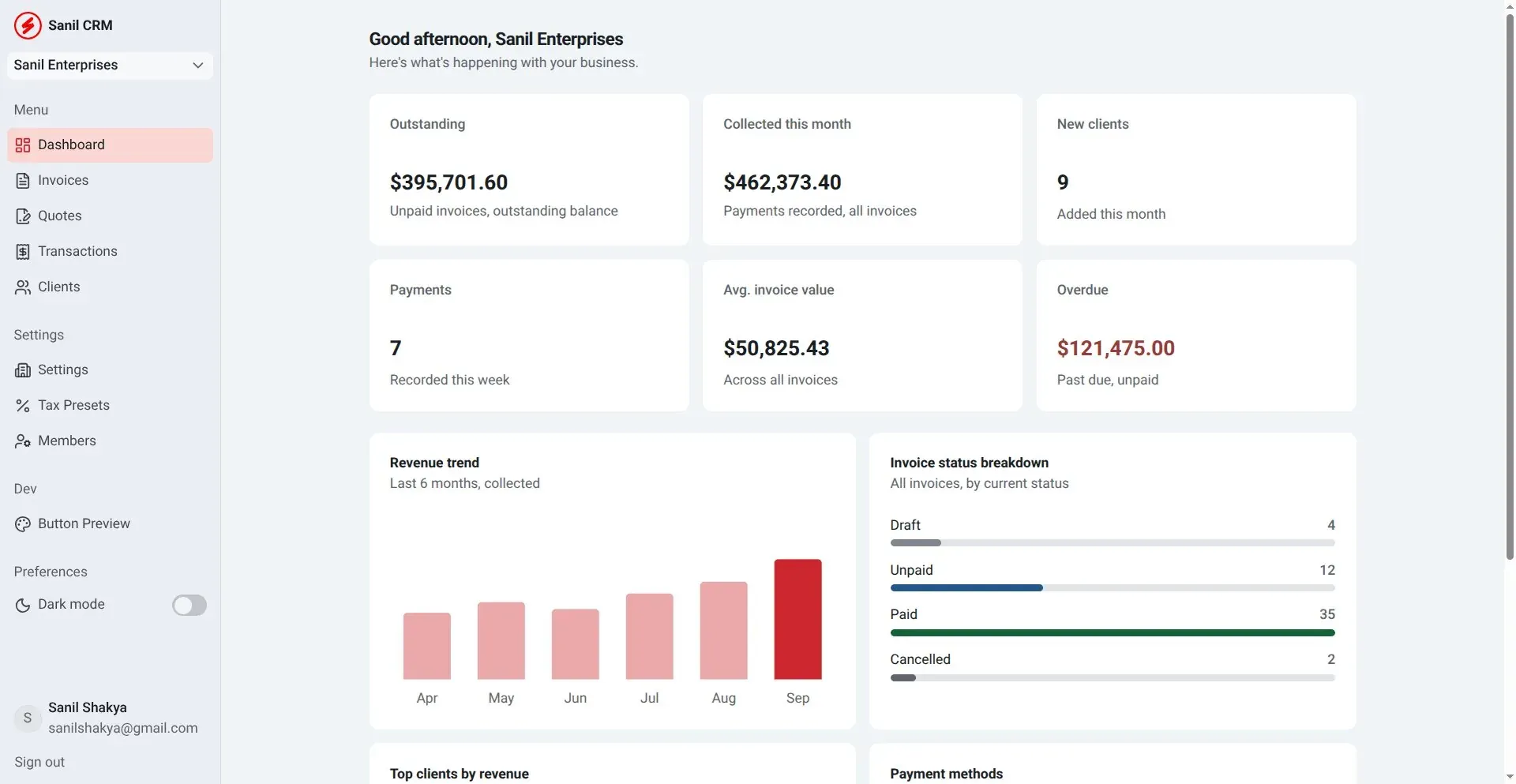
You then land on the Dashboard. You can change all of this later under Settings. See Set up your business profile and logo.