
Rotate several ads in the same spot
A group is a set of ads that share one spot. Use it to test two banners against each other, or to run several campaigns in the same space.
Make a group
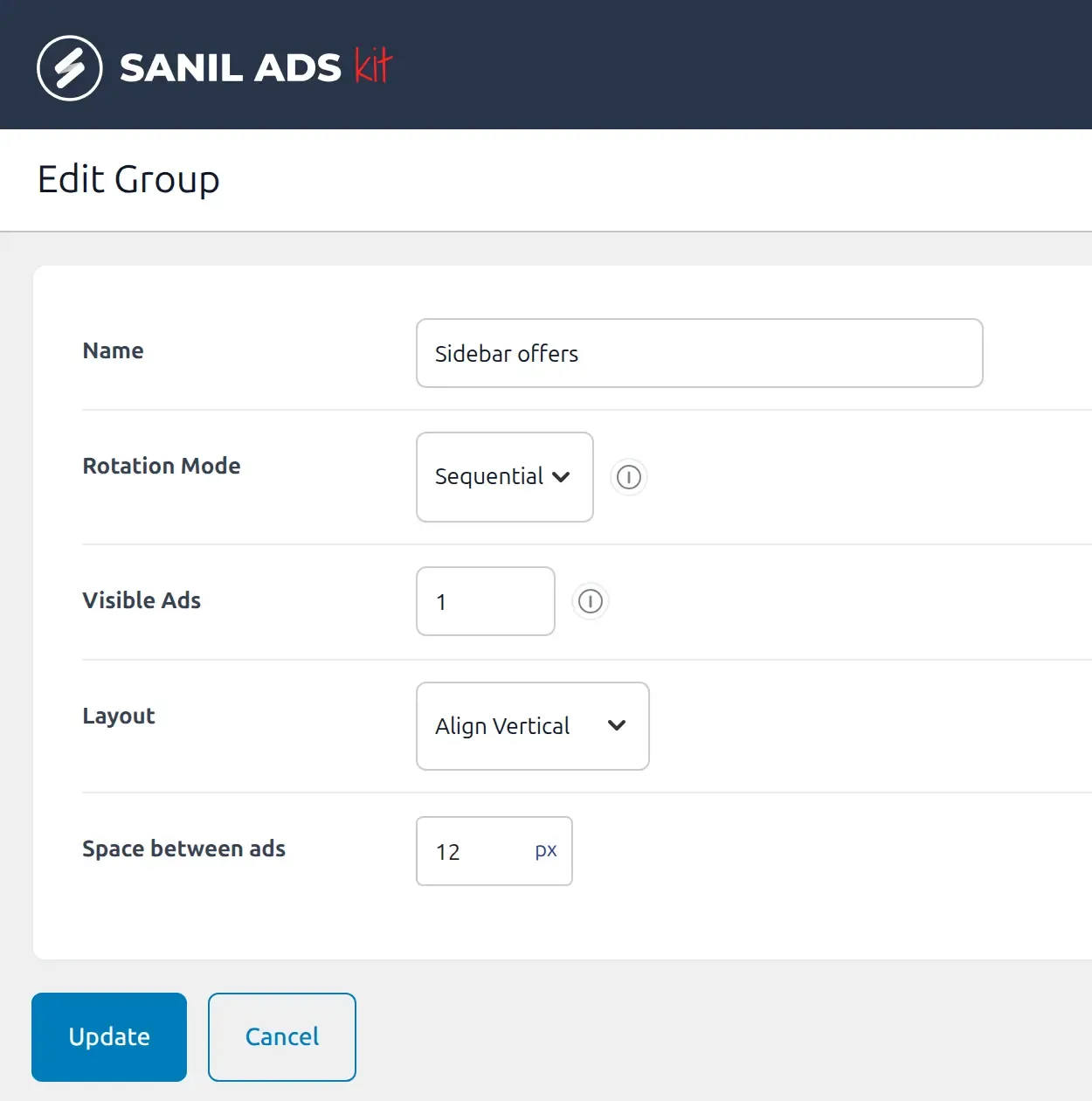
- Create the group. Go to Sanil Ads Kit → Groups and add a group with a Name.
- Choose how it rotates. Set Rotation Mode to Sequential (each page view moves on to the next ad) or Random.
- Choose how many show. Set Visible Ads, the number of ads shown at once. Leave it empty to show all of them.
- Choose the layout. Layout is Align Horizontal (a row) or Align Vertical (a column). Space between ads sets the gap in pixels.
- Add ads to it. Open each ad and tick the group in the Groups box on the right, then save the ad.
- Show the group. Assign it to a placement, use the Sanil Ads Kit block, or use
[amkit_ad_group id="4"]or[amkit_ad_group slug="your-group"]. The Groups screen shows each group’s shortcode.
Favour one ad with Priority
Each ad has a Priority field in Ad Details. In a sequential group, higher-priority ads come first. In a random group, they are picked more often. Leave it alone if you want every ad treated equally.
Good to know
- Only ads that are published and pass their own schedule, targeting and device settings take part in the rotation.
- Sequential rotation remembers its position between visitors, so the next page view gets the next ad.
- A group can be assigned to several placements.
- Deleting a group moves it to the trash first. A group with the same name as a trashed one cannot be created until you restore or delete the old one.
- To see which of two ads wins, compare their views, clicks and CTR. See Run a banner A/B test.