
Compare time zones for a meeting
The Time Converter shows the same moment in every city you add, so you can find a time that works for everyone.
Line up your cities
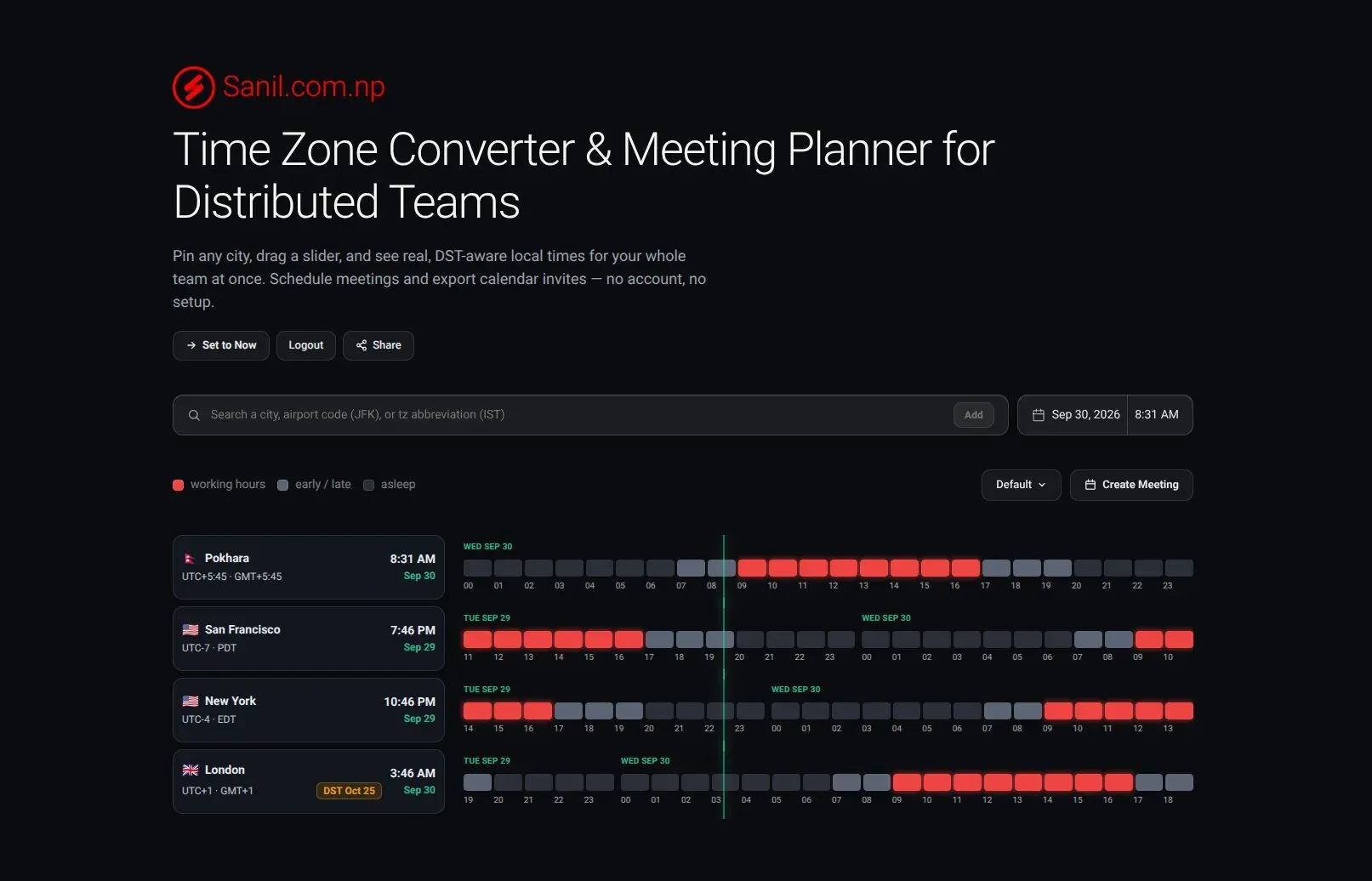
- Open the converter. Go to timeconverter.sanil.app.
- Add your cities. Type a city, an airport code such as JFK, or a time zone abbreviation such as IST in the search box and click Add (or press Enter). See Add, remove and reorder cities.
- Pick the time. Click or drag along the timeline to move the vertical line. Each city card shows its local time at that moment. Use the date and time box to jump to a particular day.
- Look for the red. Red boxes are working hours, grey are early or late, and dark ones are when people are asleep. A column that is red in every row is a time that works for everyone. See Read the timeline colors and times.
- Use it. Click Share to send the time as a link, or Create Meeting to put it in a calendar.
Back to now
Click Set to Now to jump back to the current time.