
Set up online payments
Use a compatible payment gateway extension to collect a deposit or the full price when customers book. This guide uses PayPal for Sanil Booking Kit as the example.
Connect and test PayPal
- Activate the extension. Install and activate PayPal for Sanil Booking Kit, then open Extensions → PayPal for Sanil Booking Kit in Booking Kit.
- Connect Sandbox. On the Sandbox card, use Connect with PayPal if enabled, or open Manual setup and follow the instructions for your PayPal Sandbox app and webhook. PayPal needs a publicly reachable HTTPS webhook URL.
- Enable PayPal. Turn on Enable PayPal Payment Gateway and save. Leave Use Live for new payments off during testing. PayPal must support the booking currency in Settings → General.
- Test the full flow. Set up a service for online payment and make a booking with a sandbox buyer account. Check the appointment, payment record and expected email. Test a refund in the PayPal Sandbox dashboard.
- Switch to Live. Set up the Live connection on your HTTPS site, turn on Use Live for new payments and save.
If you use several eligible gateways, you can preselect one for new bookings. In the gateway’s settings, use Make this the default payment gateway where available. Customers can choose another eligible gateway at checkout. A single eligible gateway is used automatically.
Choose how much to collect
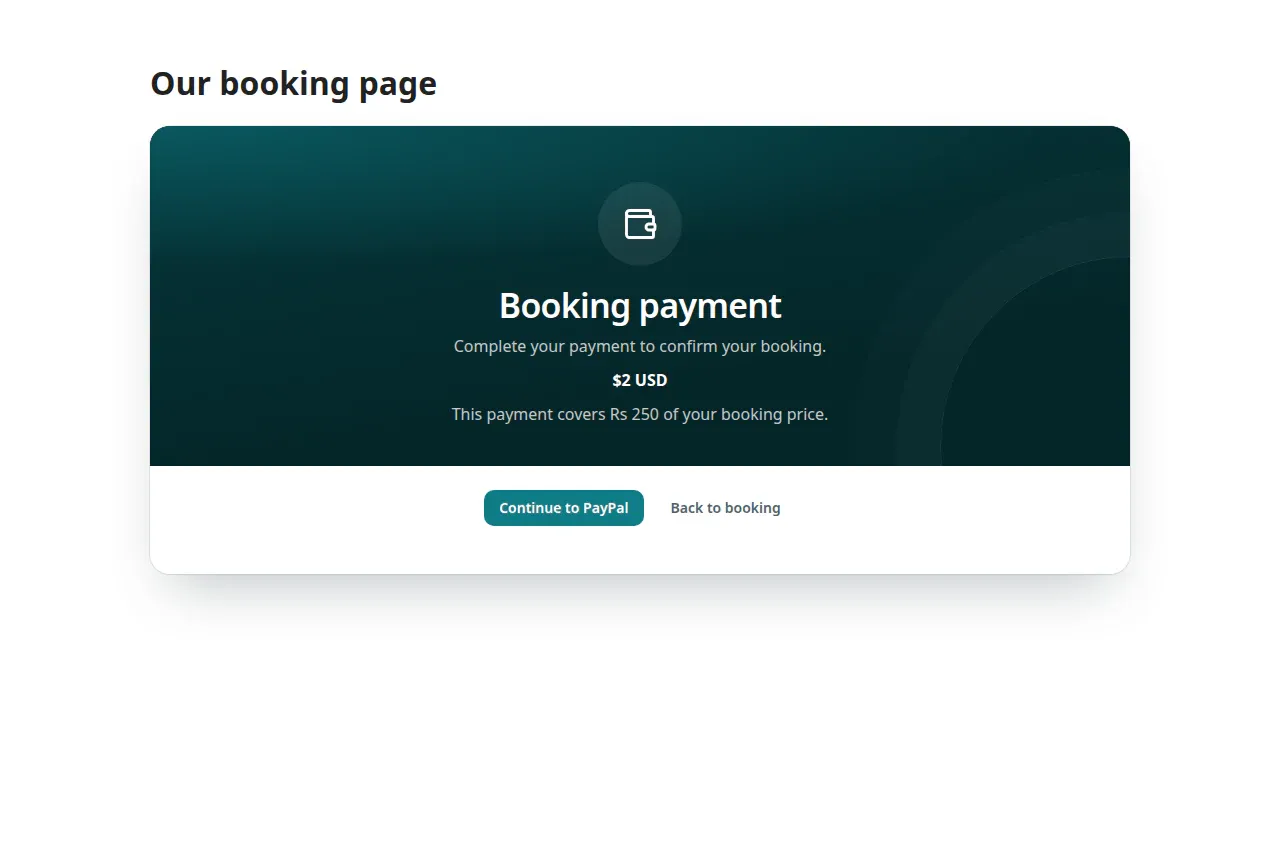
Edit the service and open Time and price → Collect online (%). Enter 0 for payment on arrival, 1–99 for a deposit, or 100 to collect the full amount, then save. The booking total includes any staff price override and selected extras. For a deposit, collect the remaining balance on arrival and use Record balance paid in the appointment.
When a customer starts checkout, Booking Kit holds the time for up to 20 minutes. Once the gateway verifies the payment, the appointment becomes pending or approved according to its booking rules. If a service requires payment and no gateway is eligible, customers must contact the business or try again after the gateway is restored.
Refund an online payment
- Find the transaction. As a WordPress administrator, open Payments, select the payment and use its transaction details to find it in the original gateway’s dashboard.
- Issue the refund. Refund the full or partial amount in the gateway. Cancelling or declining the appointment and refunding its payment are separate actions.
- Check the record. A completed refund can sync back to Booking Kit if the gateway supports refund notifications and its webhook is configured. For an existing PayPal connection, use Manual setup → Update webhook events to include Payment capture refunded.
- Record it if needed. If a completed refund has not synced, open the payment in Payments, choose Manual refund and enter the completed amount in the currency shown. Include the Gateway refund reference, which is required for additional refunds on the same payment. To correct an eligible manual entry, click Undo entry and enter a reason. Any money movement happens in the gateway.
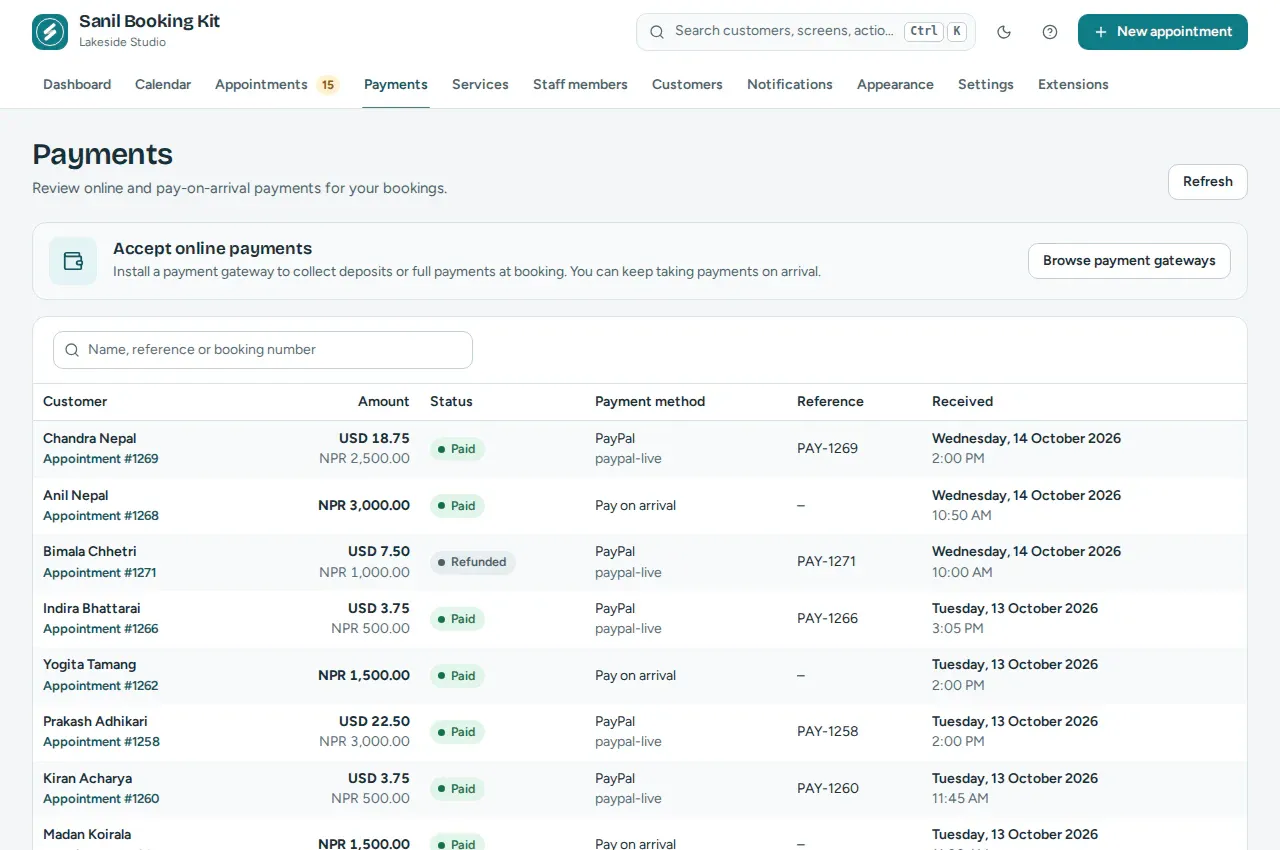
A payment that arrives after the hold expires can appear as Refund required. Check the transaction in the gateway before arranging a new booking. Keep WP-Cron running so Booking Kit can reconcile interrupted payments.